


TP-Link Tapo
4.67.76K Reviews
App Specs
- Version
- 3.20.754
- Updated On
- License
- Free
- Downloads
- 10,000,000+
- Developer
- TP-LINK SYSTEMS INC.
- Categories
- Lifestyle
- Platform
- Android, iOS
Screenshots
 Analysis by AppCompare
I find a smart-home app works best when it makes ordinary routines easier without turning every household task into a technology project. TP-Link Tapo is aimed at that practical middle ground: it brings compatible smart devices together so you can check and control them from a phone. I’d consider it if you’re building a home around Tapo products, especially if more than one person needs to understand what is connected and when it runs.
When one phone is not enough
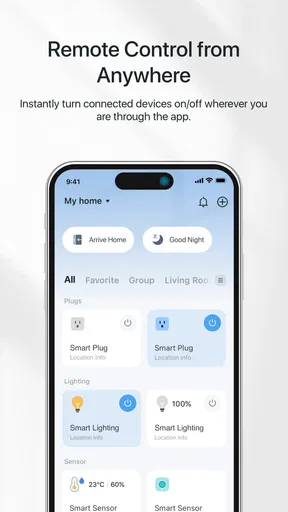
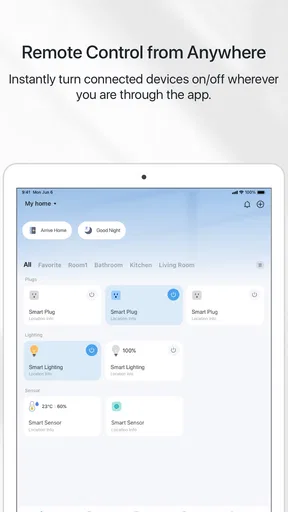
In a shared home, the main benefit is having a single place to see the devices rather than asking someone else to find a switch or remember a schedule. Imagine leaving for work and realizing a lamp or plug may still be on. Remote control gives you a way to check the app and act without going back home. That is a small convenience, but it is the kind of everyday problem a connected setup can actually solve.
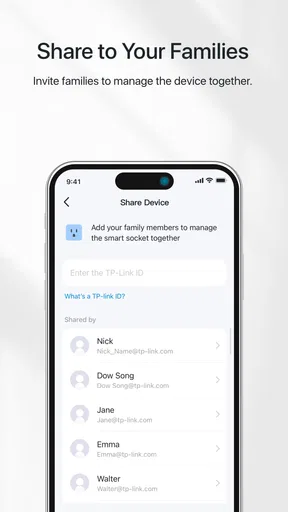
Shared use also calls for a little thought before anyone starts changing settings. A schedule that suits one person may surprise another, and a device being switched off remotely can be confusing if nobody knows why. I’d agree on a few household basics first: which devices are automated, what the routine is meant to do, and who should change it. That simple conversation can prevent the app from becoming another source of crossed wires.
Getting started without overcomplicating the home
If you’re like me and always on the lookout for smart home solutions that don’t break the bank, then you might want to check out TP-Link Tapo. This app is designed to make your life a tad easier by allowing you to manage your smart devices seamlessly. So, let’s dive into what makes this app tick.
Getting Started with TP-Link Tapo
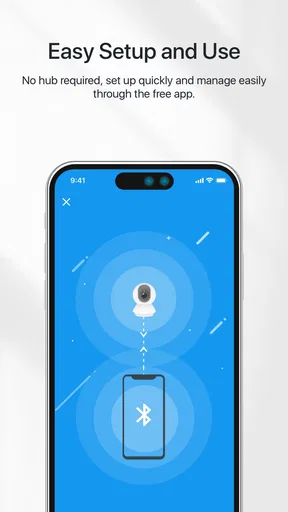
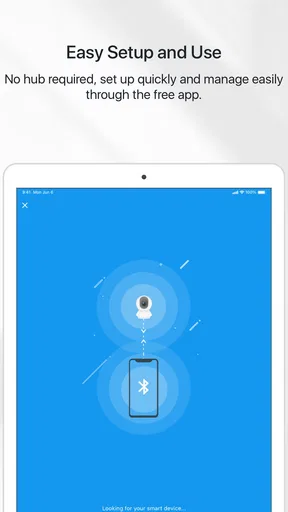
First things first, getting started with the TP-Link Tapo app is pretty straightforward. Once you’ve downloaded it—available on both Android and iOS—the setup process is smooth sailing. You’ll need to create an account or log in if you’re already on board with TP-Link. Simple, right?
The app’s interface is quite intuitive. The home screen gives you a neat overview of all your connected devices. Whether it's your smart plugs, bulbs, or cameras, everything is conveniently laid out. The real kicker here is the ease of use, something even non-techies will appreciate.
Setting expectations around setup and access
Although the initial steps feel approachable, the experience depends on having compatible devices and getting them connected successfully. I’d start with one device and confirm that it appears in the app before adding more. That makes it easier to tell whether a problem comes from the device, the connection, or a setting you have just changed. It also avoids the frustrating situation of trying to troubleshoot a whole room at once.
Worth Reading Before You Choose

Baby Panda World Brings Quick Play to Modern Phones, but Its Game Library Feels Busy

ESPN’s Live Game View Makes Following Close Games Easier

QuizzLand Review: A Good Fit for Short Trivia Breaks, Not Every Player

Basketball Stars: Multiplayer Is Fast, but Can It Recover When Matches Go Wrong?

WEBTOON Turns Phone Updates Into a Better Reading Routine

Link to Windows Runs on Shared Habits, Not Social Feeds
An account is part of the setup, so it’s worth deciding how the household will handle access before everyone relies on the system. Keep account details private and be deliberate about who can make changes. I wouldn’t assume that a shared household automatically gets separate permissions or individual controls; the sensible approach is to use the access options actually presented in the app and keep important account credentials secure.
For a renter or anyone who moves often, I’d also think about portability. A phone app can make a device easier to manage, but it does not remove the work of setting up compatible hardware again in a new place. If you want something that works without adding connected devices or maintaining an account, ordinary switches and standalone controls may be a better fit.
Diving into Features
Now, let’s talk features. The app offers a range of functionalities that make managing your devices a breeze. For starters, you can control your devices remotely. Forgot to turn off the lights? No worries. Just hop onto the app and switch them off from wherever you are.
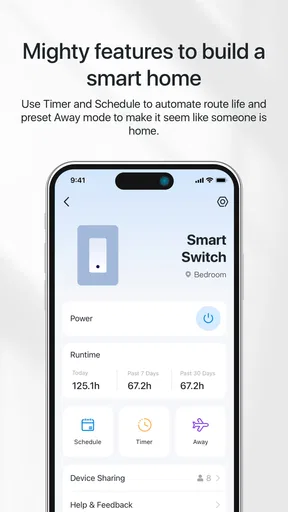
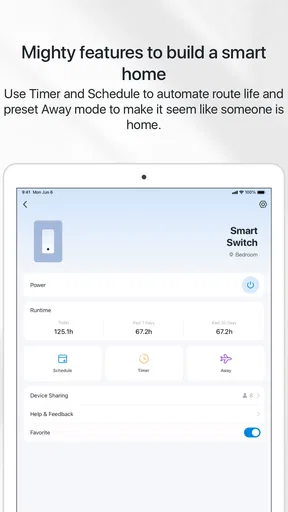
Scheduling is another nifty feature. You can set your devices to operate on a schedule that fits your lifestyle. Want the lights to come on as you wake up? Done. Want them off when you hit the sack? Easy peasy. This kind of customization is what makes smart homes, well, smart.
One practical way to use schedules is to match them to routines that are predictable, such as lights going off at bedtime. For anything that changes day to day, I’d avoid setting a rigid schedule and expecting it to fit every exception. Before relying on automation, check that the routine still makes sense for everyone at home, and know how to switch a device manually if plans change. Automation is most useful when it reduces repeated effort, not when it creates another thing to monitor.
One of my favorite features is the Away Mode. It’s like having a virtual babysitter for your home. The app can randomly turn your devices on and off to make it look like someone’s home when you’re away. It’s a great way to add an extra layer of security without any hassle.
I’d treat Away Mode as a small convenience rather than a security system. It can make a home look less predictably empty by varying device activity, but it does not replace locking doors, checking windows, or asking a trusted person to keep an eye on the place when needed. It is also worth choosing the devices and routines thoughtfully: activity that looks plausible from outside is more useful than a pattern that is obviously out of step with the household.
Coordination, compatibility, and alternatives
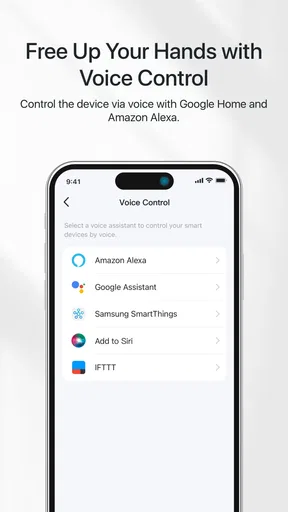
Compatibility is key with any smart device, and TP-Link Tapo doesn’t disappoint. It works well with both Alexa and Google Assistant, so if you’re into voice commands, you’re covered. Just a simple, "Hey Google, turn on the living room light," and you’re good to go.
The app also integrates smoothly with other TP-Link devices, allowing for a unified smart home experience. This is particularly great if you’re expanding your smart home setup. The synergy between devices is like having a well-oiled machine running your home, effortlessly.
For a household already using compatible Tapo products, keeping control in the Tapo app is a straightforward choice. If your devices come from several brands, the usual alternatives are to manage each brand in its own app or rely more heavily on a voice assistant. Separate apps can mean more places to check, while a voice assistant can be quicker for simple commands. I’d still keep the device’s own app available for setup and schedules, since speaking a command is not a substitute for reviewing how a routine is configured.
A useful household habit is to make device names clear and specific. “Hall lamp” is easier to recognize than a vague label when several people are looking at the same list or using voice commands. Before adding a new device, decide on a naming pattern and stick to it; it can save time later and reduce the chance of turning off the wrong light. This is a small organizational choice, but it matters more as the device list grows.
Age, trust, and everyday reliability
Because this is a lifestyle app for controlling devices around the home, the age label is Everyone, but that does not mean every child should have unrestricted access to household accounts or connected equipment. I’d keep account credentials with a responsible adult and explain which controls are okay to use. In a home with children, an adult should also review any schedules that affect shared rooms so an automation does not surprise someone who was not involved in setting it up.
In terms of user experience, the app is generally smooth and responsive. During my time using it, I didn’t encounter any major lags or crashes, which is a big plus. The app updates are regular, ensuring it stays compatible with the latest devices and operating systems.
The performance of the connected devices through the app is commendable. Commands are executed promptly, and the connection remains stable, which is crucial for reliability. After all, what’s a smart home without reliable connectivity?
As with any connected setup, I would not make an app the only way to operate something important. Keep familiar manual controls in mind, and check the device itself if a command does not seem to take effect. A phone interface is convenient, but household members should still know the ordinary way to use a lamp or switch when a device is offline, a phone is unavailable, or somebody simply prefers not to use the app.
What the app costs and who should choose it
TP-Link SYSTEMS INC. makes Tapo, and the app is free to download. The broader experience includes in-app purchases, so I’d look at the purchase details in context rather than assume that every connected-device function has the same cost. Its 4.6 average from around 456,000 ratings and more than 10 million installs suggest that it has found a wide audience, though popularity alone does not tell you whether it suits your particular home.
The app is a sensible choice if you already own compatible Tapo devices, want remote control and schedules in one place, and are comfortable managing an account. It is less compelling if you have no interest in connected hardware, want every member of a household to have clearly separated controls, or prefer not to depend on an app for routine tasks. For a mixed-brand home, compare the effort of switching between manufacturer apps with the convenience of your existing voice-assistant setup before adding another layer.
The current version is 3.16.185 and requires Android 7.0 or later; it is also available on iOS. It is rated Everyone, which is useful context for families, but I’d still treat device access as a household responsibility rather than something to hand over without discussion. The key question is not just whether the app is easy to open, but whether the people sharing the home agree on who can adjust routines and how to handle unexpected changes.
Final Thoughts
All in all, the TP-Link Tapo app is a solid choice for anyone looking to dip their toes into the world of smart homes. It’s user-friendly, packed with features, and offers excellent compatibility with other devices. Plus, it’s a great way to start automating your home without needing a tech degree.
Whether you’re a tech-savvy individual or someone just beginning their journey into smart home technology, this app offers something for everyone. So, why not give it a whirl and see for yourself? You might just find that managing your home has never been easier. Happy smart homing!
Pros
- User-friendly interface with intuitive navigation.
- Supports multiple devices for seamless control.
- Real-time notifications for enhanced security.
- Energy-saving features reduce power usage.
- Easy setup with step-by-step guidance.
Cons
- Limited integration with third-party apps.
- Requires stable internet for optimal performance.
- Some features locked behind a paywall.
- Occasional connectivity issues reported.
- Limited customer support availability.
FAQs for TP-Link Tapo
What is TP-Link Tapo and what does it do?
TP-Link Tapo is a smart home app designed to manage and control Tapo smart devices like cameras, plugs, and bulbs. It allows users to remotely monitor and operate their devices, schedule operations, and receive alerts. This app helps in automating home functions to enhance convenience and security.
Is the TP-Link Tapo app compatible with all smart devices?
The TP-Link Tapo app is specifically designed to work with TP-Link’s Tapo series of smart devices. While it may not support other brands, it seamlessly integrates with Tapo smart cameras, plugs, and bulbs, providing a comprehensive solution for managing your Tapo smart home ecosystem.
How secure is the TP-Link Tapo app?
Security is a priority for the TP-Link Tapo app. It employs advanced encryption standards to protect user data and communications. Regular updates are provided to patch vulnerabilities, and users can set up two-factor authentication for an extra layer of security. Always ensure your app is updated to the latest version for optimal protection.
Can TP-Link Tapo be used without an internet connection?
While some basic functionalities of TP-Link Tapo devices might work locally, an internet connection is required for full functionality. Features such as remote access, real-time notifications, and firmware updates rely on an active internet connection to operate efficiently.
Is the TP-Link Tapo app user-friendly for beginners?
Yes, the TP-Link Tapo app is designed with a user-friendly interface, making it accessible to beginners. It offers step-by-step guides for setting up devices, intuitive controls, and easy-to-navigate menus to ensure a smooth user experience. The app is suitable for users of all technical levels.


